
FFmpeg Context Menu
FFmpeg is one of the most powerful media tools ever built — and completely invisible to most people because it has no GUI. This puts it in your right-click menu.
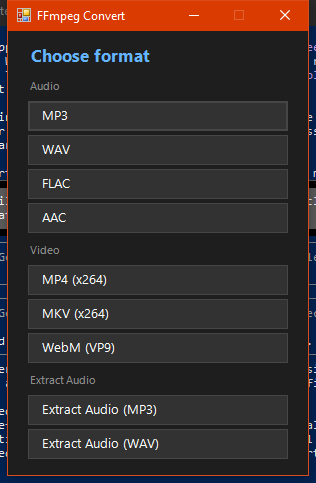
Select any audio or video file in Windows Explorer — or right-click a folder to convert everything inside it — choose FFmpeg Convert, pick a format from the dark GUI, and watch the progress window fill up. No terminal, no dragging files into apps, no re-encoding the wrong settings.
Windows 10/11 · No admin rights required · ffmpeg auto-downloaded on install
Install
One-click (recommended)
Download FFmpegConvertSetup.exe and run it. The installer copies files to %LOCALAPPDATA%\FFmpegMenu\, downloads ffmpeg automatically if not found or outdated, and registers all HKCU context menu entries — no admin prompt.
Manual install
powershell -ExecutionPolicy Bypass -File install.ps1Build installer from source
build.cmdProduces FFmpegConvertSetup.exe using IExpress, which ships with Windows.
Supported Formats
Audio
Video
Extract Audio from Video
Features
Right-click Files Or Folders
Right-click any media file to convert it. Right-click a folder (or empty space inside a folder) to convert every file in it in one shot — no need to open the folder and select all files first. The same format picker handles both modes.
Format Picker GUI
A dark Windows Forms format picker dialog opens before any conversion starts. Pick your output format, confirm, and FFmpeg does the rest. No command line, no config files.
Parallel Conversion
Up to 4 simultaneous conversion jobs, capped to your CPU core count. Batch-select 20 files and they all process at once instead of one at a time.
Live Progress Window
Per-file status updates in real time: Queued → Converting → Done / Failed. File size before and after is shown for each job so you can see exactly how much space you saved.
Sample Rate Preservation
ffprobe reads the source sample rate before conversion and passes it through to the output — floored at 44100 Hz. Your audio never gets silently downsampled.
Originals Kept Safe
On success, original files are moved into a preconvert/ subfolder next to the output — never deleted. If something goes wrong you still have the source.
Handles Any File Name
Smart quotes, accents, [brackets], % and leading dashes all convert correctly — the kind of characters real track titles are full of. Each file is temporarily renamed to a safe name for the conversion, then the output takes the original name with its new extension. Nothing is ever overwritten: if the target name is taken, the output gets a _1 suffix instead.
Auto ffmpeg Download
The installer checks for a compatible ffmpeg build and downloads it automatically if not found or outdated. You never have to manage FFmpeg binaries yourself.
No Admin Rights Required
All registry entries are written to HKCU (current user only). Installs and uninstalls cleanly without elevation. Works on locked-down machines.
Multi-file Selection
Select any number of files in Explorer — the context menu entry appears regardless. All selected files are queued into the same conversion job.
To uninstall: run uninstall.ps1 from %LOCALAPPDATA%\FFmpegMenu\ — removes context menu entries and cleans up registry.